
MQL5
Besides NTSL, TMChart runs programs in MQL5, the MetaTrader 5 language: EAs (OnTick),
indicators (OnCalculate) and scripts (OnStart). They run on TMChart’s own interpreter: MetaTrader 5
never runs the program and MT5 Algo Trading is not used. An EA’s orders go to the TMChart broker — Backtest, SIMULATOR
and replay — and, on the LIVE account, only through an automation you turn on.
The list of what the interpreter accepts is in the MQL5 function reference.
What is accepted
Section titled “What is accepted”- Language: types with MQL5 semantics (integer division,
datetime,color,D'...'/C'...'literals),struct,enum, dynamic arrays,input/sinput, overloading, default and by-reference parameters,#define,#property,#ifdef. - Object orientation: classes, inheritance,
virtual, interfaces, templates,new/delete,namespace. #include <...>reads theMQL5\Includefolder of your terminal (for exampleTrade\Trade.mqhand theCTradeclass);#include "file.mqh"reads the program’s folder.- Symbol and series data in any timeframe, 38 technical indicators by handle (
iMA,iRSI,iMACD…),iCustomfor your own MQL5 indicator, orders, positions and history. - Left out (the program is rejected when it loads, with the reason): DLLs and
#import,.ex5without source, chart objects, files, network and real ticks (CopyTicks). See the reference.
Editor (MQL5 tab)
Section titled “Editor (MQL5 tab)”Strategies → Strategy Editor menu, MQL5 tab.
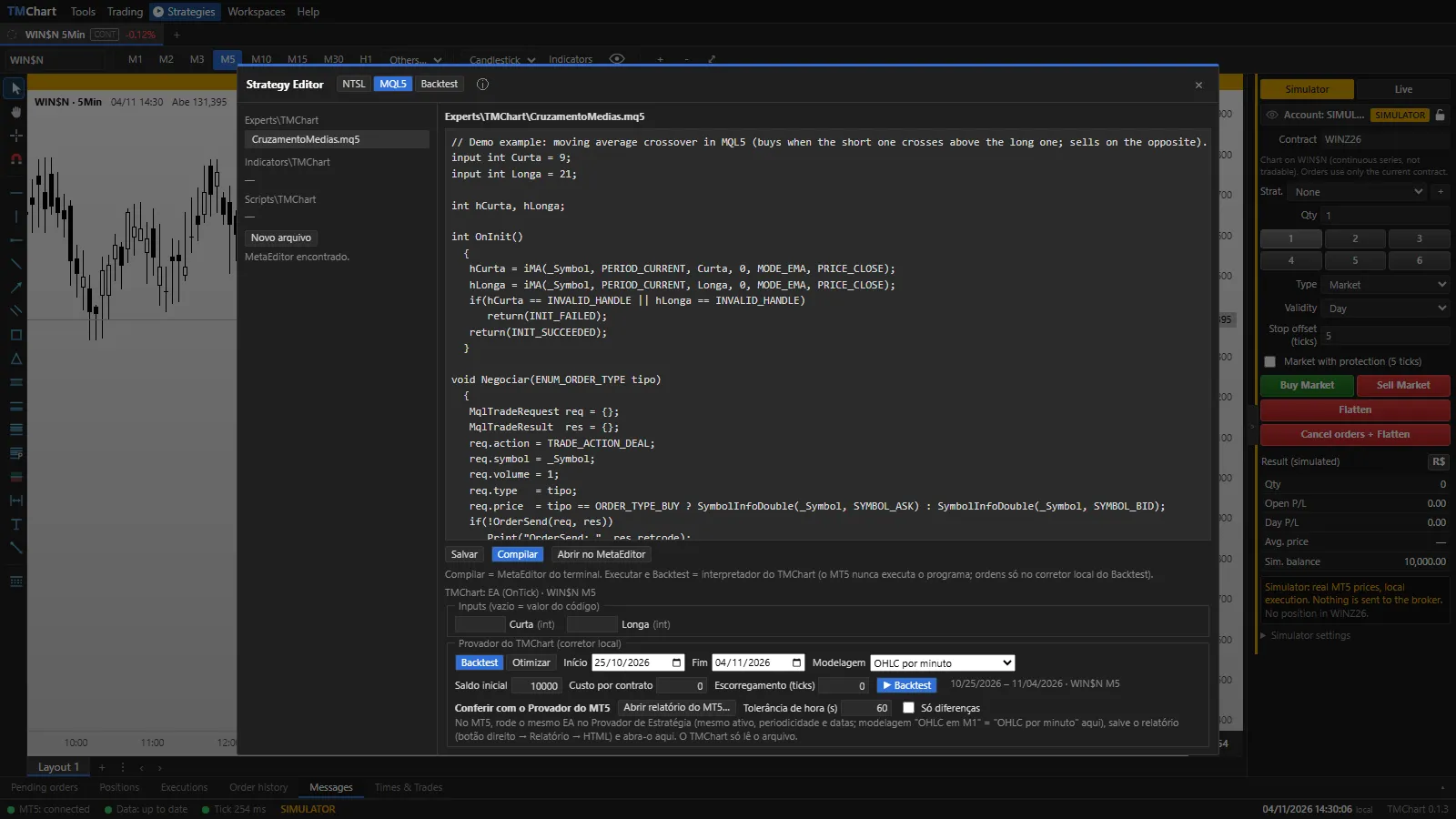 App screenshot with fictitious data (demo).
- On the left, the
.mq5files of the terminal’sMQL5\Experts\TMChart,MQL5\Indicators\TMChartandMQL5\Scripts\TMChartfolders. New file creates one from a template (EA, indicator or script). TMChart only writes to these folders. - Save writes the file. Compile uses the terminal’s MetaEditor to check the code (it creates the
.ex5); Open in MetaEditor opens the file there. - Inputs: the program’s
inputs, with a field to change the value (empty = the value in the code). - Run (script or indicator): runs on the last bars of the active chart;
Print,Commentand errors go to the console below.
In this version the MQL5 tab labels are shown in Portuguese: Novo arquivo (New file), Salvar (Save), Compilar (Compile), Abrir no MetaEditor, Executar (Run), Otimizar (Optimize), Início/Fim (Start/End), Modelagem (Modeling) and Conferir com o Provador do MT5 (Check against the MT5 Tester).
MQL5 indicator on the chart
Section titled “MQL5 indicator on the chart”In the chart’s Indicators window, the MQL5 indicators (terminal) group lists the indicators of the
Indicators\TMChart folder. Once inserted, the buffers and plots (#property indicator_*, PlotIndexSet*) are drawn
like any indicator; double-click to open the inputs.
EA backtest and optimization
Section titled “EA backtest and optimization”Below the editor, the TMChart Tester (local broker):
- Backtest: Start, End, Modeling (OHLC per minute — M1 bars, like the MT5 Tester “1 minute OHLC” — or open prices only), Initial balance, Cost per contract and Slippage (ticks). The result uses the same screen as the NTSL Backtest (summary, trades, chart, equity).
- Optimize: tick the numeric inputs, with start, step and end; click a result row to see that variation’s backtest and Use these values to bring them to the inputs.
- The Backtest panel (Strategies menu) also has NTSL | MQL5, with the EAs of the
Experts\TMChartfolder.
Check against the MT5 Tester
Section titled “Check against the MT5 Tester”To compare TMChart with MetaTrader 5: in MT5, run the same EA in the Strategy Tester (same symbol, period and dates; “1 minute OHLC” modeling), save the report (right-click → Report → HTML) and, in TMChart, use the open MT5 report button under Check against the MT5 Tester. TMChart only reads the file and compares trade by trade: equal, different (time, price, volume or profit, with the time tolerance), only in MT5 and only in TMChart, plus both results. The “differences only” box filters the list.
EA in automations
Section titled “EA in automations”In New Automation → Select strategy, the MQL5 EAs tab lists the EAs of the Experts\TMChart folder (the file is
read again on every Start). The EA runs on every tick (OnTick) with the automation’s own position, the inputs in
Edit parameters and the same tabs and protections as an NTSL automation, on the SIMULATOR, in replay and on LIVE.
License
Section titled “License”MQL5 uses the same license features as NTSL: editor, backtest, optimization and automations (see
License and plans). You need MetaTrader 5 installed (the MQL5 folders and MetaEditor come with it).