
Alarms
Open the Alarms window from Tools → Alarms… (it opens in its own window). An alarm only notifies (sound, popup, Windows notification and message): it never sends an order, not even on the LIVE account.
Alarms are checked by the TMChart main window: with the app closed, nothing fires.
The window
Section titled “The window”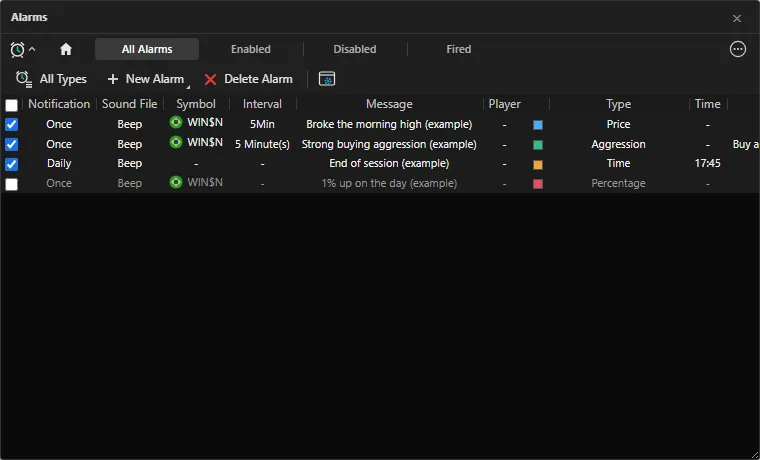 App screenshot with fictitious data (demo).
- Tabs: All Alarms, Enabled, Disabled and Fired (those that fired at least once).
- All Types: filters the list by group (Symbols, Strategies, Time, Chart Alarms…). Groups TMChart does not have yet are shown disabled.
- New Alarm ▸: New Symbol, Strategy and Time Alarm. Goal, News and Correlation are shown disabled (coming soon).
- Delete Alarm: click a row to select it, then the button. The row pencil edits and the trash can deletes.
- The check box on the left of each row enables or disables the alarm; the header box applies to all.
- Gear (Alarm Settings): whether new alarms show a popup and a Windows notification.
- Columns: Notification, Sound File, Symbol, Interval, Message, Player (always “-”), Color, Type, Time, Condition, Price and Var. (%).
Sounds
Section titled “Sounds”The Sound list shows the files in the TMChart sounds folder (.wav, .mp3 or .ogg, up to 10 MB each):
- installed:
%APPDATA%\TMChart\dados\sons; - the folder is also shown in the gear and in each alarm dialog.
Put your sounds there; the folder is read again each time a dialog opens. Without the backend connected, or with an invalid file, the TMChart beep plays. There is also a No sound option.
Time Alarm
Section titled “Time Alarm”Time (HH:MM:SS, by the PC clock), Repeat daily, Message, Sound and Color. If TMChart was closed at that time: it still fires up to 2 minutes later; after that, a one-time alarm expires and a daily one moves to the next day.
Symbol Alarm
Section titled “Symbol Alarm”Choose the Alarm type, the Symbol, the Alarm sound and the Alarm color. Each one fires once (it moves to Fired).
- Breakout: enter the Price (target price). It fires when the quote reaches the target from the side it was on. In Break when within X % of the target price, with X above 0, it fires a little earlier, X % away from the target.
- Percentage: the reference price is the last price when you insert it. It fires when the price moves X %, up or down.
- Aggression: it fires when the volume traded aggressively by the chosen side (Buyer or Seller) goes above the Aggression limit (%) of the volume in the Time window (minutes or hours, up to 24 h). Trades without a side do not count.
- Offer: it fires when the sum of one side’s offers in the whole book goes above the Offer limit (%) of the total.
Reversal and Candle Close are shown disabled (awaiting definition). PTAX Alarm, Auction, Settlement and Cross Trade are also disabled: the broker’s MT5 does not provide that data.
Strategy Alarm
Section titled “Strategy Alarm”It notifies when an NTSL script calls Alert(...). The script runs in the background, with no chart open and with
no broker (order functions are ignored).
- Alarm: lists the scripts in your library that use
Alert. Closed scripts (.tmautopackages) are not listed. Create Rule opens the Strategy Editor to write a new script; the popup color is the one inAlert(Color). - Symbol and Interval: number + Minute(s), Day(s), Week(s), Month(s), Renko Tick(s) or Point & Figure Tick(s). Day, Week and Month only accept 1. Point & Figure uses the Points chart. Year(s) and Reversal Tick(s) are shown disabled.
- Notification:
- When the condition is met: when
Alertshows up in the forming candle (once per candle); - On candle close (condition met during the candle): at the close, if
Alertshowed up at any moment of the candle; - On candle close (condition met only at close): only if the closed candle has
Alert; - Both: the first and the third together.
- When the condition is met: when
The close is detected when the next candle arrives. The alarm stays enabled after firing. If the script fails or is deleted, the alarm becomes Disabled with a warning.
Chart alerts
Section titled “Chart alerts”Alerts created on the chart are also in this list (Type Price, Drawing line or Indicator):
- right-click the chart → Create alert at
or Indicator alert…; - Alert button on a drawing line’s panel (notifies when the price crosses the line).
Choose the condition (crosses up, crosses down, crosses or touches), the frequency (once or once per bar), Only on bar close (no repaint), the expiration and the notifications. A price alert is checked by the quote, even with no chart; drawing line and indicator alerts only with the chart of that symbol and timeframe open.