
Installation
Requirements
Section titled “Requirements”- Windows 10 or 11 (64-bit).
- Your broker’s MetaTrader 5 (optional), with your account already logged in: it brings the broker’s symbols and the LIVE account. Without it, TMChart works with Binance data and the SIMULATOR account (the free mode).
- Internet for the license (the app works for up to 7 days without reaching the license server).
Install
Section titled “Install”- Download the installer from the customer portal (Download page).
- Run the installer and choose the language (Portuguese, English or Spanish). It applies to the whole app and can be changed later in Settings → General.
- When it finishes, open TMChart from the shortcut it created.
First start
Section titled “First start”On the first start the risk disclosure and terms of use appear. Tick both boxes and click Finish (or Decline and quit). The links open the full Terms of Use, Privacy Policy, EULA and Risk Disclosure in the browser; when one of them gets a new version, the app asks you to accept again. Then activate the license with your account e-mail and password (see License and plans).
On a fresh install the app opens on the SIMULATOR account with the BTCUSDT chart (Binance), which works even without MetaTrader 5. To see your broker’s symbols, connect MT5 (see Connecting to MetaTrader 5) and change the symbol and the account; from then on the app opens the way you left it.
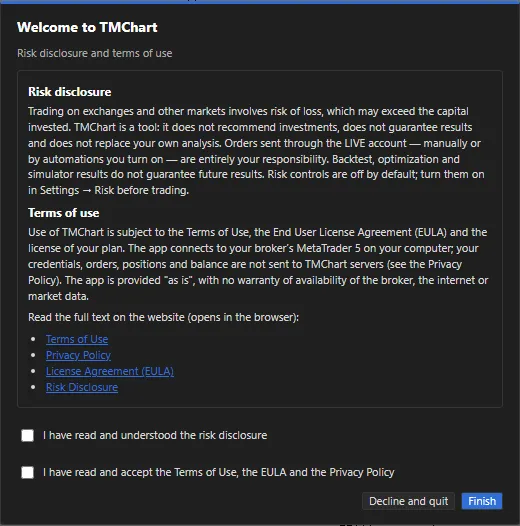 App screenshot with fictitious data (demo).
Updates
Section titled “Updates”Updates are downloaded in the background and installed when you close the app — TMChart never restarts by itself while it is open. To check right away: Help → Check for updates menu.
In the version installed from the Microsoft Store, the Store itself updates the app (like its other apps): TMChart does not download updates and Help → About TMChart shows Updated by the Microsoft Store.
Settings backup
Section titled “Settings backup”Automations, scripts, drawings, layouts, workspaces, simulator, OCO and exit strategies are stored on this computer. In Settings → General → Settings backup:
- Export… creates a
.tmbackupfile (to keep or move to another PC); Import… brings it back. - Automatic copies: once a day the app saves a copy in
%APPDATA%\TMChart\dados\backupsand keeps the last 14; Restore goes back to any of them, and Copy now saves today’s right away. - Restoring replaces all current settings (export them first if you want to keep them). Then close and reopen TMChart; nothing else is saved until then, so what is open does not overwrite what was restored.
- If you see “Not enough space to save settings”, export a backup and delete drawings/layouts you no longer use.
- Backtest optimization results are not included in the backup.