
Automations
An automation runs an NTSL strategy or an MQL5 EA live, on a symbol and timeframe, and sends the orders it generates. Open the window from the Strategies → Automations menu.
Create
Section titled “Create”- Have a strategy saved in the Strategy Editor.
- Click New Automation: the automation window opens. On the left, Account and Wallet and the automations of that account (click one to open it); at the top, the asset and the periodicity; tabs General, Entry, Exit, Risk and Safety.
- On the General tab: Account / Wallet (SIMULATOR, nothing goes to MT5, or LIVE), Select strategy, Edit parameters, Name, Asset (e.g. WIN$N, WDO$N, PETR4), Periodicity, the quantities and the Contract update.
- Save stores and keeps the window open; Save and exit stores and closes; Cancel (or Esc) discards, asking first if something changed. Nothing changes in the automation before saving. A new automation enters the list only when saved.
- To edit later, click the row’s ⚙ gear (or double click). While running, the window opens read-only: stop it to edit. With a position, account and asset are locked.
Advanced settings (switch at the bottom left) shows the Entry, Exit, Risk and Safety tabs; off, only General. The automation summary (state, log, purchased package card) is below the list (see The window).
Select strategy opens the selection window: tabs All, My Strategies, Examples and MQL5 EAs, a
Search field and the table with Name, Optim. (has parameters and goes to the optimizer), Ind. (draws on
the chart, Plot), Color. (paints the candles, PaintBar) and Exec. (sends orders). Below, the Description (the
// comment lines at the top of the code, or the purchased package’s text) and, on the right, the code Preview
(.tmauto packages and closed scripts show only “Protected code”). Select (or double click) chooses; a script without
order functions (Exec. “-”) cannot be chosen. Import brings a .tmscript or a .tmauto package; Help opens this
page. The Examples (moving average crossover, channel breakout, RSI) are study templates, not recommendations: when
selected, a copy goes to My Strategies (and to the Strategy Editor), where it can be changed.
Edit parameters opens the Edit Strategy Parameters window with the script’s parameters (Input): the value comes
from the script; what you change applies only to this automation (from script goes back to the original). OK
applies to the draft (stored with Save); Cancel discards.
Entry tab:
- Position opening type: Buy / Sell (default), Buy only or Sell only. On the blocked side, an order that would open or increase the position is ignored; one against the position only flattens, never reverses. Stops, targets and flattening always apply.
- Evaluate last candle after disconnection: when coming back from a connection drop or delayed data, checked = evaluates the candle that closed during the drop (if it closed less than one candle ago) and may send orders; unchecked (default) = waits for the next candle. Internal history reloads do not count as a drop.
- Execution mode: at the candle close (default) = the script runs once when the candle closes and orders apply
during the next candle. When the condition is met (intrabar) = the script runs on every update of the forming
candle and orders apply immediately (market executes on the next trade; limit/stop enter the book in that same
candle); if the condition stops holding, the requested pending order is cancelled. At the close the candle is
evaluated again, complete. Works in SIMULATOR and REAL. Two options only for intrabar:
- Wait for the candle close for the first execution: when turned on (or back from a suspension), the forming candle is not evaluated; it starts after the first closed candle.
- Allow multiple sends and order changes for the same bar: unchecked (default), after the first send (order created or changed) in the candle the script sends nothing else in it, not even at the close; it resumes on the next candle. Checked, it may send on every update (careful: in REAL each change is an order; use the orders/minute limit).
- While a market order has not executed, the script is not re-evaluated (no doubled order).
- The candle changes until it closes: the condition may hold on one trade and not at the close. The chart and the Backtest show only closed candles, so the live result may differ from the Backtest.
- Trading hours: Execution interval = only opens positions inside the checked intervals; Suspension interval = does not open inside them. Each interval has a checkbox to turn it on, start and end (HH:MM:SS, Brasília time) and Flatten position (cancels the orders and flattens the automation position at the end of the execution interval or at the start of the suspension, without blocking the rest of the day). Add interval adds another (up to 10; × removes). No interval checked = no restriction. Exits always apply. Works in SIMULATOR and REAL.
| Field | What it does |
|---|---|
| Periodicity | Number + type: Seconds, Minutes (the MT5 timeframes: 1, 2, 3, 4, 5, 6, 10, 12, 15, 20, 30, 60…), Renkos (nR, same as the TMChart Renko chart, with wicks) or Points (box in ticks, same as the Points chart). Seconds, Renkos and Points are built from the trades of the current and previous sessions (older Renko/Points from M1); in Renko and Points the strategy runs when the brick/box closes, not by the clock. When turned on, it waits for the backend to finish reading the day’s trades (up to 2 min). In replay, an automation in Seconds/Renkos/Points starts on any minute chart and builds its bars from the day’s replayed trades (Renko/Points warm up with M1 before the day; Seconds do not start on a day replayed from M1); in Minutes, the timeframe must be the chart’s. In the backtest, choose Renko/Points/Seconds in the Timeframe field |
| Quantity per order | Quantity per order when the script does not set one (starts at the asset’s MT5 minimum lot: WIN 1, gold 0.01, stocks 100; then any multiple of the lot step) |
| Maximum position quantity | Position cap (starts at the minimum lot when you pick the asset; multiples of the lot step); takes priority over the quantity in the code |
| ≈ R$ | Below the quantities: approximate value (quantity × last price × asset point value) |
| Contract update | Continuous series only (WIN$N): On the current contract change (default) follows the current contract at rollover (flat, restarts in the new one; positioned, stays in the old one until flat); Keep the chosen contract stays in the contract it started in, with its signals, until you stop it (restarting picks the current one). Fixed contract or stock: stays in it |
| Flatten at (Exit tab) | Optional. With a time: cancels, flattens and blocks entries until the next day. Empty: does not flatten at the end of the session |
| Emergency stop (Exit tab) | LIVE only. If the script has no stop, the app places this stop (pts from the average price) at the exchange. 0 = off |
| Orders per minute (Safety tab, Feedback protection) | More orders created or modified per minute count as a failure (see Safety tab). Default 60; 0 = no limit |
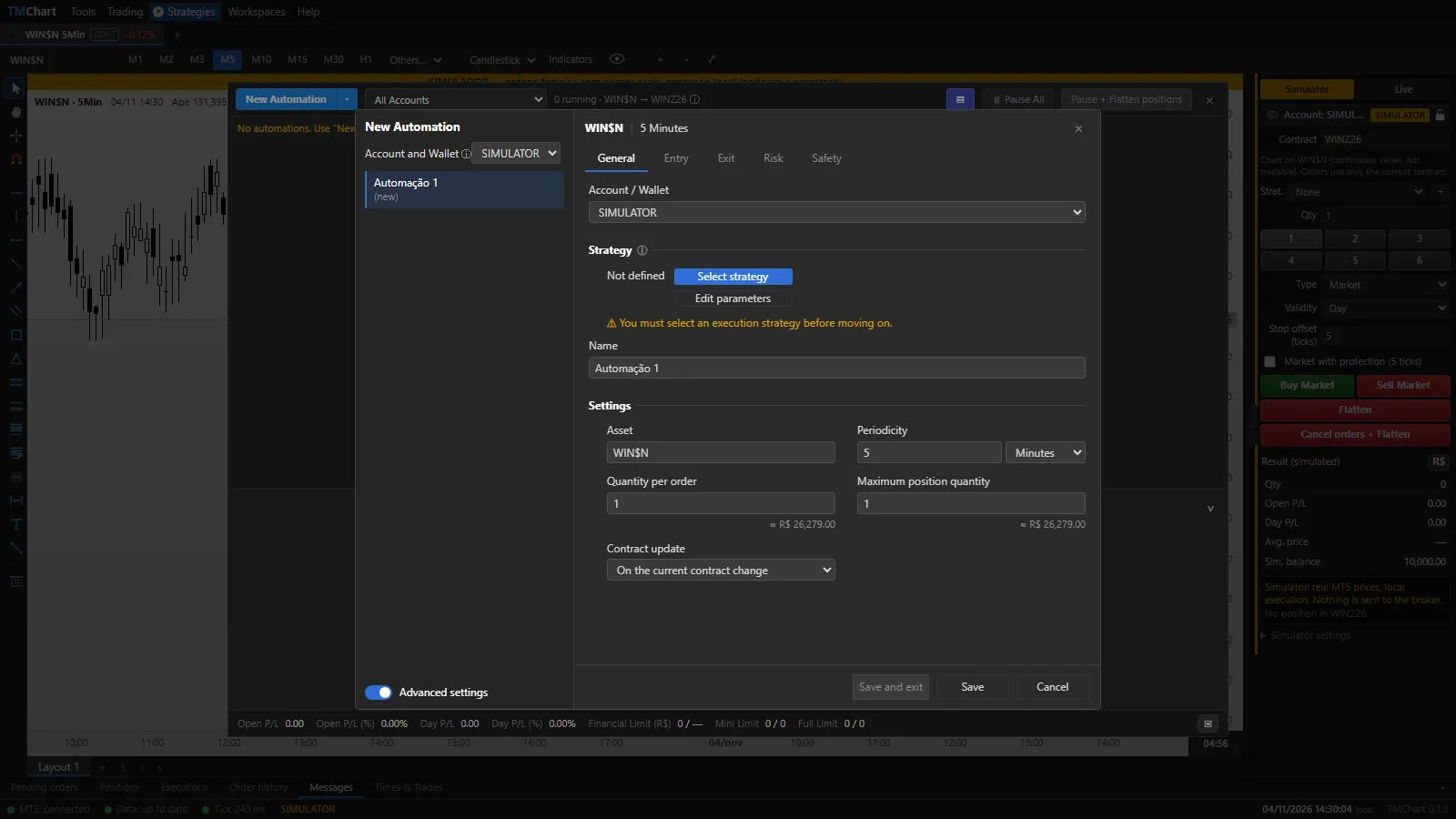 App screenshot with fictitious data (demo).
The window
Section titled “The window”The Automations window has:
- Bar: New Automation and the ▾ arrow (Export, Import, Edit limits); account filter (All Accounts, Simulator, Real); ▤ shows or hides the summary; Pause All and Pause + Flatten positions.
- Rows: ▸ opens the row, ▶/⏸ starts or pauses, name and last modified, asset (S = SIMULATOR, R = REAL), Open P/L, Day P/L, Automations Running (state; “-” when stopped), ⚙ edits and ⋯ has Edit, Flatten, Stop and Delete. Double-clicking the row also edits.
- Open row (▸): Status (button that starts/pauses), account, position and Open P/L in money and points.
- Automation summary: click a row to see its summary below (state, warnings, log); ⌄ collapses it.
- Status bar: Open P/L and Day P/L of the filtered automations, in money and % of the SIMULATOR balance (“—” with a REAL automation in the filter, because the REAL account balance is not read); Financial Limit = open exposure (quantity × average price × point value) / limit; Mini Limit (WIN, WDO) and Full Limit (IND, DOL) = open contracts / sum of the maximum quantities of the automations on those assets.
Start, pause and stop
Section titled “Start, pause and stop”- ▶ Start: turns it on. The script runs at the close of each bar; orders apply on the next bar and fill at real prices (buy at the ask, sell at the bid).
- Pause: the script stops and pending orders are canceled; the position stays. ▶ resumes.
- In the row’s ⋯ menu: Edit, Flatten (only stopped with a position: cancels pending orders and flattens the automation’s position), Stop (pending orders canceled; the position stays) and Delete (stopped and flat, with confirmation).
- Pause All and Pause + Flatten positions apply to all; the PANIC button on the menu bar does the same as the latter. None of them touches the manual account. The F12 key pauses and flattens the automations of the chart’s symbol (and also flattens the manual account on that symbol).
- Without a connection or with late data, the automation waits and resumes by itself.
- When the app reopens, all come back stopped (the position stays).
Own position
Section titled “Own position”Each automation has its own position, separate from the manual account and from the other automations.
- SIMULATOR: local execution, nothing is sent.
- LIVE: each automation uses its own wallet (up to 9 LIVE automations). Stop and target go to the exchange as an OCO. You can drag stop and target on the chart or move the stop to the average price (Alt+B); the script does not undo what you moved. Turning it off cancels the entries and keeps stop/target; an error flattens the wallet and turns the automation off.
- Closing the app with an open LIVE wallet: the wallets’ OCO does not run with the app closed. So the stop stays at the broker protecting the position and the target and pending entries are cancelled. When you reopen, the wallet comes back with the stop and the OCO works again. If you flatten the position in MT5 with the app closed, cancel the stop there too.
- Errors with the app open flatten the wallet and turn the automation off: script error, automation engine stopped, order blocked by TMChart and OCO unable to cancel an order (3 attempts). An order rejected by the broker only flattens and turns off when it reaches the Flood control limit (Safety tab; default 5 in 1 minute).
- Internet outage (or loss of the broker connection): the automation stays on. While the connection is down nothing is sent, but the stop and target already at the broker keep protecting. When the connection is back, the wallet is checked against MT5 and the automation resumes by itself, without flattening.
- Flattening or reducing on mobile (MT5 mobile, web or another platform) a REAL automation position: TMChart recognizes the order placed outside it, takes the quantity first from your manual position and the rest from the automation wallet, turns the automation off with the notice “position flattened outside TMChart” and cancels the stop/target of what was closed (if reduced, it replaces stop and target with the remaining size). So no forgotten order opens an opposite position.
- On mobile you can see and manage the account’s position and orders in the MetaTrader 5 app (same account and server): flatten, move and cancel stop/target. TMChart automations (turn on/off, status) only show in TMChart.
- PC or backend crash (the app was not closed properly): nothing runs while the PC is off. On the next start, the automations that were on stay off, their pending entries are cancelled and the Abnormal shutdown notice lists the open positions: Flatten (one or all) or Keep (the stop protects). The app does not flatten by itself then.
- On LIVE, futures and cash stocks are accepted; options, forward contracts and Binance are not.
Protections (Edit limits)
Section titled “Protections (Edit limits)”In the ▣ icon at the right end of the status bar (or New Automation ▾ → Edit limits):
- Global daily loss: the day’s realized + open result of all automations. When hit, it acts like panic and blocks turning automations on until the next day.
- Financial limit: ceiling for the automations’ open exposure (0 = no limit). For now it only shows in the status bar, in yellow when exceeded; blocking comes in a later step.
- New automation defaults: orders/min and emergency stop applied to new automations (orders/min starts at 60; 0 = off).
Exit tab
Section titled “Exit tab”- Exit by OCO strategy: choose one of the Trading Strategies (Trading menu, the same as the order
ticket) or
. The ⚙ gear opens their editor. With a strategy, the automation itself sends its stop and targets for each position it opens (as its own orders, in its own wallet), in SIMULATOR, replay and REAL (starting it is the consent, like the other orders of the automation). - The limit/stop exits of the code give way to those of the strategy; the market exits of the code (e.g. signal reversal, ClosePosition) continue.
- Targets split the position by the % of the rows; a filled target removes only its part and the stop then covers the rest.
- Breakeven and trailing stop (Stop Orders Strategy) move with the last trade, at most one adjustment every 2 s and without exceeding the orders/min limit of the automation (leaves room for the code). The stop never moves back, not even when restarting with a position.
- The strategy applies as it was at Start; editing it later applies at the next Start. Deleted strategy: the
tab warns and the automation does not start until you choose another one or
. - Stop and targets appear on the chart like the other orders of the automation (label, drag and ×).
- Flatten at: see the table above.
Risk tab
Section titled “Risk tab”Everything unchecked by default. Counted only for this automation, per day (realized + open result, in R$):
- Pause and flatten when reaching: Daily gain target and Daily loss limit. When the value is reached, the automation pauses and flattens. Do not flatten when the gain target is hit: at the gain it only pauses (the position stays).
- Pause when reaching (no flatten): Consecutive losses (closed trades in a row with a loss) and Number of trades (a trade = the position leaves zero and returns to zero; a reversal counts as one closed).
- Pause when account limits are hit: Edit limits saves at once the maximum day loss and gain of the sum of the automations of the account (SIMULATOR or LIVE; 0 = off). When hit, pauses every automation of that account without flattening.
After any of them is hit, Start (and ▶ on a paused one) is locked until the next day, with the reason in the log. The check runs every second; without a quote for the asset (open result unknown) it waits.
The LIVE account limits in Settings → Risk apply on top of each automation’s limits. See Risk controls.
Safety tab
Section titled “Safety tab”- Failure control (script error, fills-per-tick protection or orders per minute above the limit):
- Disable strategy: the script stops, pending entries are cancelled and the position and its stop/target stay active (they still fill). Flatten or cancel with the × on the chart or the row’s Flatten. SIMULATOR and replay only.
- Disable strategy, cancel orders and flatten position (default). On REAL this one always applies.
- Auction control: shown disabled (No action) until TMChart detects auctions reliably.
- Flood control: counts orders rejected by the broker in 1 minute. Below the Rejection limit per minute (default 5) a rejection only goes to the log and a warning; at the limit the chosen action is applied (on REAL it always disables, cancels and flattens). The simulator does not reject orders, so the limit applies on REAL. Orders blocked by TMChart’s rules, uncertain sends and a rejected protective stop with no other stop still flatten immediately.
- Feedback protection: the limit of orders created/modified per minute (see the table in Create).
If something differs from MT5
Section titled “If something differs from MT5”- Divergent: the automation’s wallet does not match the position in MT5. Nothing is sent on that symbol except cancels. Check MT5 and use Assign to the manual wallet to move the difference to the manual account.
- Uncertain: a send got no answer from the broker. LIVE automations are frozen until you reconcile in the order ticket.
Export, import and purchased automations
Section titled “Export, import and purchased automations”- Export saves all automations and their scripts to a
.tmautofile (open or closed). Import adds the automations from a.tmauto: they come in stopped and on the SIMULATOR account. - Purchased automations (an author’s
.tmauto) have protected code: you can use them in automations and in the Backtest, adjusting the parameters, but without the editor, the optimizer or re-exporting. They only start if your license includes purchased automations and that automation’s key is enabled on your account.