
Windows, tabs and workspaces
The main window has, from top to bottom: the menu bar, the chart tabs, the chart toolbar, the chart with the studies bar on the left and the order ticket on the right, the bottom panel and the status bar.
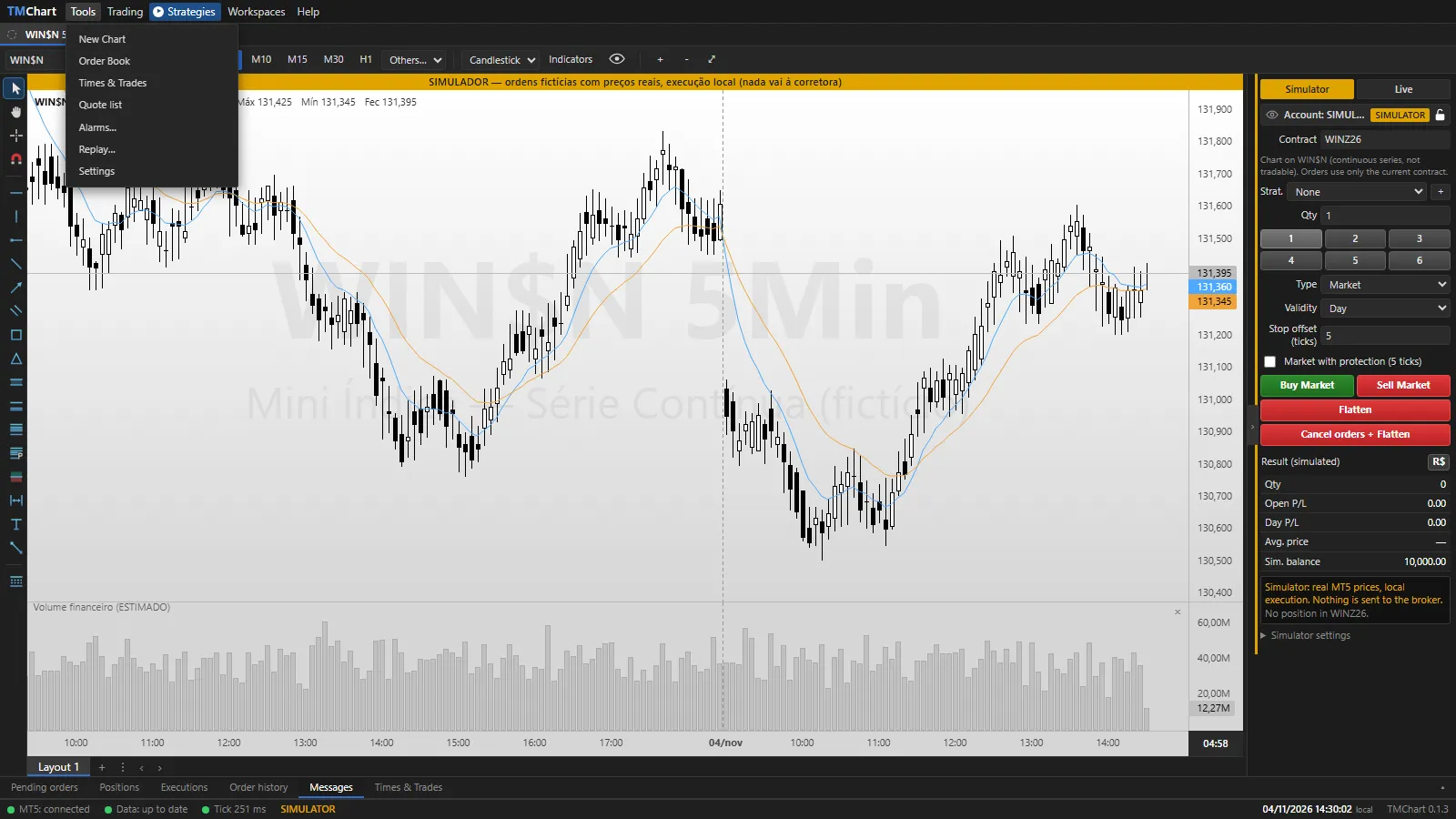 App screenshot with fictitious data (demo).
Menu bar
Section titled “Menu bar”- Tools: New Chart, Order Book, Times & Trades, Quote list, Alarms…, Replay… and Settings.
- Trading: Trade Strategies (OCO)…, Stop Order Strategies…, Performance Report and, with LIVE execution enabled, Execution log.
- Strategies: Strategy Editor, Parameter Optimization, Automations and Import/Export Strategies (see NTSL).
- Workspaces: save and open window layouts (see below).
- Help: Help center, Contact support…, About TMChart and Check for updates. The F1 key opens the article for the screen you are on.
- PANIC (on the same bar): turns off all automations, cancels their pending orders and flattens their positions. The manual account is not touched.
Chart tabs
Section titled “Chart tabs”- + opens a new tab; × closes the tab and takes you to the last one you were viewing. The last tab does not close.
- Each tab shows the symbol, the timeframe, CONT (continuous series, analysis only) and the day change.
- Drag a tab (click and hold) to change the order; a blue line shows where it goes. The order is saved.
- The color dot links the tab to a group (see Quote list and color link).
Chart layouts
Section titled “Chart layouts”The bar below the chart holds the layouts (Layout 1, Layout 2…): each layout keeps the chart’s indicators and scripts. + creates an empty layout; ⋮ renames, duplicates (with its content) and deletes. The list of layouts is the same in every tab, and each tab picks its own. Layout tabs can also be dragged to change the order.
Display (eye)
Section titled “Display (eye)”The eye on the toolbar shows or hides, on the chart: orders, positions, studies, indicators, the symbol tabs and Show trades (the account fills as ▶ triangles; applies to every window).
Windows
Section titled “Windows”- Tools → New Chart opens a chart in its own window (secondary window). It has its own tabs and can go to another monitor. SIMULATOR orders are executed by the main window, so keep the main window open.
- Order Book, Times & Trades, Quote list, Alarms, Performance Report, Execution log and the Strategy Editor open in free windows: drag by the title, resize by the edge, Esc closes.
- Magnetic alignment: when you drag or resize, the window edge snaps to the monitor edges and to the other TMChart windows.
Workspaces
Section titled “Workspaces”A workspace keeps the window layout, the tabs and the layouts of each one.
- Workspaces → Save as new… saves the current layout under a name; Save current replaces the open workspace.
- Click a workspace in the list to open it. Manage workspaces… organizes the saved workspaces.
- Workspaces are part of the settings backup (see Installation).
Bottom panel and status bar
Section titled “Bottom panel and status bar”- Bottom panel: Pending orders, Positions, Fills, Order history, Messages and Times & Trades. The arrow on the right collapses the panel.
- Status bar: MT5 connection, data state, Tick and Send (latency; see Connecting to MetaTrader 5), the account in use, the local clock and the TMChart version.