
Order ticket and chart orders
The order ticket sits next to the chart and trades the symbol of the active chart, in the account chosen at the top (Simulator or Live — see SIMULATOR and LIVE).
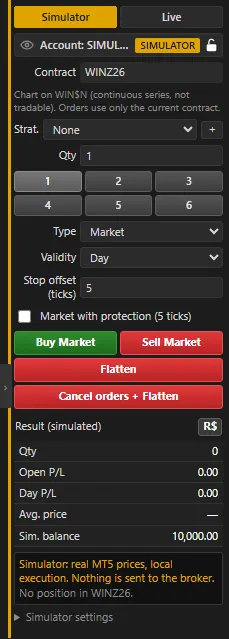 App screenshot with fictitious data (demo).
Fields
Section titled “Fields”- Side: Buy or Sell. Qty: quantity (contracts or shares). When you change the asset, Qty becomes the minimum lot reported by MT5 (WIN 1, gold 0.01, stock 100) and the field steps by the asset’s lot step. The quick quantity buttons are multiples of the minimum lot: 1 to 6 on WIN/WDO, 100 to 600 on stocks, 0.01 to 0.06 on gold.
- Type: Market, Limit or Stop. For Limit and Stop, enter the Price.
- Validity: Day or Good till canceled.
- Stop: every stop is a plain stop (fills at market when triggered), on every account (SIMULATOR, replay and REAL): order ticket and chart stop orders, Super DOM, partial exits, position/OCO stop and automations.
- Contract: the current tradable contract, reported by MT5.
Buttons
Section titled “Buttons”- Buy Market / Sell Market: buys or sells at market right away.
- Flatten: closes the position in the symbol. Cancel orders + Flatten: cancels pending orders and closes the position.
Fat-finger warning
Section titled “Fat-finger warning”Before sending a new order (ticket, Super DOM, chart click or shortcut), in the SIMULATOR, replay and REAL, TMChart asks when:
- the quantity is more than N × the initial ticket quantity (default 5×); or
- the price of the limit/stop order is more than X% away from the last price (default 1%).
The dialog shows the reason; Send anyway follows the usual path (rules and limits still apply) and Cancel sends nothing. In REAL the warning shows even with “Confirm each order” off and with the Super DOM armed. Turn it on/off and change the limits in Settings → Ticket → Fat-finger warning. Exits (flatten, stop/target, dragging orders) and automations skip the warning.
From the chart
Section titled “From the chart”- Shift + click on the chart: buy order preview at the clicked price; Alt + click: sell preview. The preview uses the configured stop and target distances.
- Every order — manual or from an automation, position, pending, stop and target — shows on the chart as a line with a label (price, points and R$): drag it to change the price and use the × next to the label to cancel or flatten (on LIVE, with the confirmation the account asks for). This holds on the SIMULATOR, in replay and on LIVE.
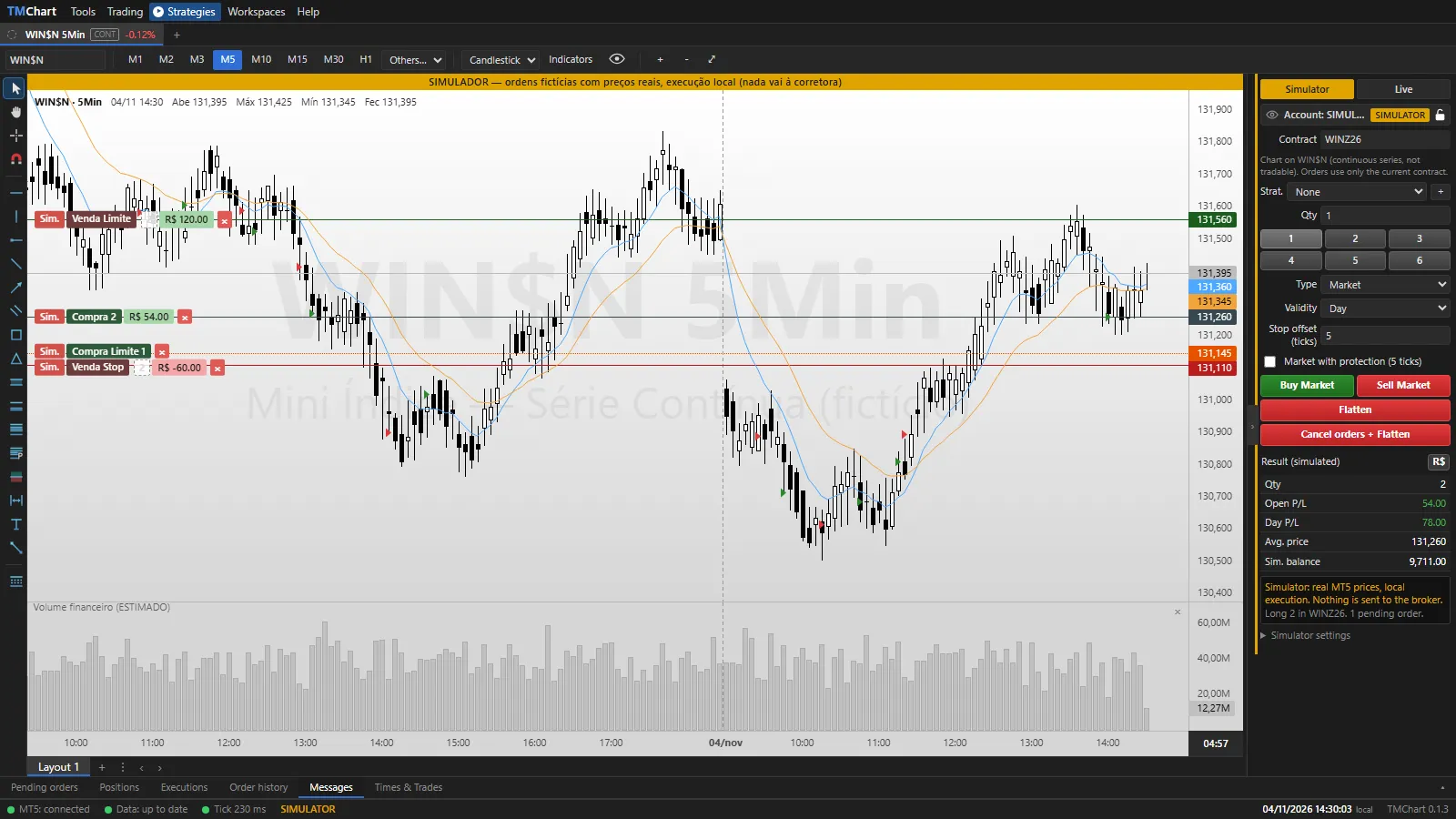 App screenshot with fictitious data (demo).
- Partial exit (SIMULATOR and replay): drag the average price tag to the exit price (on the losing side it becomes a stop, on the winning side a target). On release, a quantity box opens on the tag (starting at the whole position): type it, use ↑/↓ and confirm with Enter or ✓ (Esc or × cancels). With the whole position it becomes the position’s stop/target; with less, it becomes a partial exit and the position’s stop/target still applies to the rest. Click the quantity on an exit’s tag to change it later.
- When an exit fills, the others adjust to the remaining position: stops added up and targets added up never exceed it (the farthest from the price is reduced first); a closed or reversed position cancels the partial exits. So an exit never leaves you on the opposite side. On the armed REAL account it works the same (with the confirmation dialog): the whole position becomes the position’s own SL/TP in MT5; with less, a separate pending order (“SL/ALVO PARCIAL” line, with tag, drag, × and editable quantity). Changing the quantity cancels and resends at the same price (MT5 does not change quantity); lowering the quantity of the position SL/TP places the partial first and only then removes the position one. TMChart is what fits REAL partials to the position: a closed or reversed position cancels them all; larger than the position, it cancels the farthest — and does not resend a smaller one on its own. Closing the app cancels all REAL partials (only the position SL/TP stays, which MT5 handles even with the PC off); if the PC or the app crashes, they are canceled when it opens again. With a REAL automation open on the symbol, partial exits are blocked (the automation manages the exit).
- Show trades (eye on the timeframe bar): each fill of the active account (SIMULATOR, replay or REAL) shows as a ▶ triangle just left of the candle where it happened, tip at the fill price; green (Buy at market button color) for buys and red (Sell at market) for sells. It covers the whole chart history (on REAL the app reads earlier deals from MT5); on the continuous symbol (WIN$N) earlier expirations are included. Backtest trades are not shown here, only on the backtest chart. The option is shared by all windows: checking or unchecking it in one (main or secondary) applies to all.
- Alt + B: moves the stop to the position’s average price.
- F12: cancels orders and flattens the chart’s symbol (automations on that symbol are paused and flattened).
OCO, internet outage and app closed
Section titled “OCO, internet outage and app closed”- OCO comes only from the strategy picked in the order ticket Strat. list (right above Qty). With None, the order goes out with no stop or target (order ticket, chart shortcut and Super DOM).
- On REAL, the strategy stop is the SL of the MT5 position itself: it stays at the broker and keeps working with the app closed, without internet or with the PC off. With a REAL automation open on the symbol the strategy is blocked (the automation manages the exit).
- Regular pending orders (standalone stop or limit) also stay at the broker, but without the app nothing cancels one when the other fills: check MT5 if you close the app with them open.
- On mobile: in the MetaTrader 5 app (same account) you can flatten, move and cancel the position’s stop/target.
Trade and stop order strategies
Section titled “Trade and stop order strategies”Strategies live in the Trading menu (next to Tools):
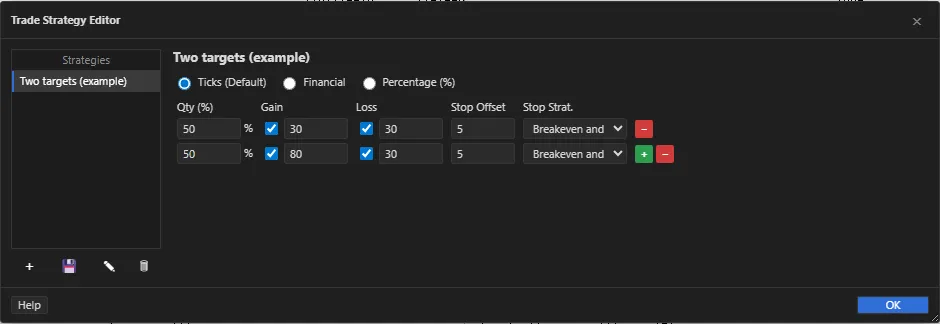 App screenshot with fictitious data (demo).
- Trade Strategies (OCO): each strategy has rows with Qty (%) of the position (adding up to 100%), Gain, Loss and Stop Strat.; + adds and − removes rows (up to 5). Values in Ticks (default; on WIN 1 tick = 5 points), Financial (in the asset currency, BRL or USD, over the row quantity) or Percentage (% of the entry price). With 1 contract and several rows, the quantity goes to the first rows.
- Stop Order Strategies: Auto Breakeven (on reaching the trigger gain, the stop goes to the entry price + distance) and Trailing Stop (after the trigger gain, the stop follows the last price at the distance, adjusting every frequency; 0 = every tick). The stop only improves.
- In the list on the left: new, save, rename and delete. OK saves and closes; × closes without saving. A stop strategy in use cannot be deleted.
- In this version there is one stop for the position: Loss and Stop Strat. apply to all rows (changing one row changes the others); the position stop is a plain stop.
To use one, pick it in the order ticket Strat. list, right above Qty (+ opens the editor); None turns it off and the order goes out with no OCO. The choice is saved: when you reopen the app (or switch asset) the same strategy turns back on by itself, with no confirmation.
- Pending order (ticket, Shift/Alt + click on the chart): with the strategy on, as soon as you hold Shift/Alt over the chart (before clicking) and then on the entry pending order you see a preview of the stop and targets (dashed EST SL / EST ALVO lines, with pts and money). It follows the order drag and goes away with its ×; when the order fills, the strategy places the real orders. With no position in the symbol, the preview stop and targets drag and have a × before the fill: the adjustment is for that order only (the distance to the entry is kept, so it follows the order drag). In REAL, adjusting sends nothing and asks no confirmation: the strategy places the orders at the adjusted price when the pending order fills. With an open position the preview is drawing only (the strategy re-anchors on the whole position).
- Simulator and replay: it turns on right away. Each new position, new average or larger position gets the stop and targets; the lines show on the chart with label, drag and ×; removing the stop with × makes the strategy leave it alone for this position. Turning off leaves stop and targets as regular exits.
- REAL account: with the account armed, picking the strategy turns it on right away, with no confirmation (the choice is your consent; with the account disarmed it turns on when you arm) for the app to place and move the position stop (SL in MT5) and the partial targets on its own until you pick None, switch asset or account, disarm, an error or closing the app. Closing the app cancels the targets and leaves the stop at the broker at its last value. Breakeven and trailing only move with the app open. Blocked with a REAL automation on the asset.
- Editing a strategy that is on takes effect the next time it is picked.
Super DOM
Section titled “Super DOM”To trade by clicking on the price ladder, use Super DOM (Order Book window). See Order flow and Super DOM.
Result
Section titled “Result”Open P/L is the result of the open position; Day P/L adds today’s gross realized and the open result. In the LIVE account, brokerage and fees are not deducted from that number.