
License and plans
The license is a subscription tied to your TMChart account (the customer portal e-mail and password). The license screen is in Tools → Settings → License.
Activate on this machine
Section titled “Activate on this machine”- Open Settings → License.
- Type your TMChart account e-mail and password and click Sign in.
- The screen then shows Valid license, the plan, the date the subscription is paid until and the enabled features.
The password is not stored on the computer.
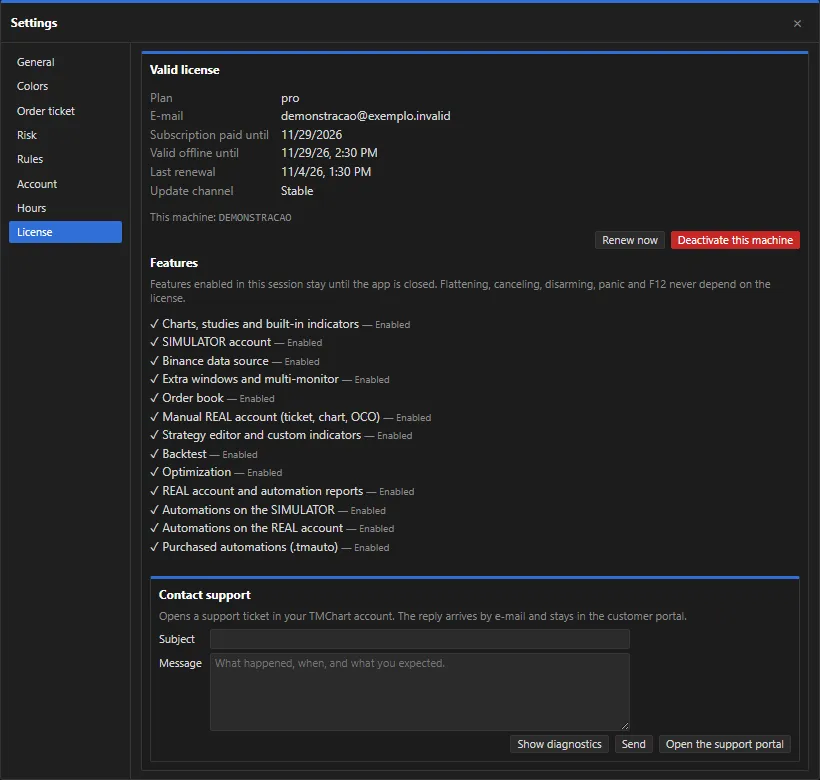 App screenshot with fictitious data (demo).
Free mode
Section titled “Free mode”Without a valid license, TMChart opens in free mode, with:
- charts, studies and built-in indicators;
- the SIMULATOR account;
- the Binance data source.
The other features show a lock: “not included in your license”.
Subscribe
Section titled “Subscribe”During the free trial or when the account has no active subscription, Settings → License (and the license notice at the top of the window) shows the Subscribe button. It opens the customer portal Subscription page in the browser: sign in with the same e-mail as the license and choose the plan. Then click Renew now (or reopen the app).
License features
Section titled “License features”Depending on the plan, the license enables:
| Feature | |
|---|---|
| Extra windows and multi-monitor | |
| Order book | |
| Manual LIVE account (ticket, chart, OCO) | |
| Strategy editor and custom indicators (NTSL and MQL5) | see NTSL and MQL5 |
| Backtest and Optimization | see Backtest |
| LIVE account and automation reports | |
| Automations on the SIMULATOR and on the LIVE account | see Automations |
Purchased automations (.tmauto) |
enabled one by one on your account |
| Exclusive indicators and colorings | see Charts |
Each plan’s features and prices are on the customer portal. The Features list in Settings → License shows exactly what is enabled for you.
Machines
Section titled “Machines”Each subscription can be used on 2 machines. To switch computers, use Deactivate this machine on the old computer (or deactivate it on the portal Home page) and sign in on the new one. After deactivating, the features stay enabled until you close the app; when it reopens, it starts in free mode.
Offline
Section titled “Offline”The license renews by itself when there is internet (or with the Renew now button). Without a connection to the license server, it stays valid for 7 days from the last renewal. The app warns 7, 3 and 1 day before the license stops working offline and before the subscription expires.
Features enabled in a session stay enabled until you close the app; the Locks at next start column shows what will be locked the next time it opens.
Common messages
Section titled “Common messages”| Message | What to do |
|---|---|
| Wrong e-mail or password | Check your account details on the customer portal. |
| This account has no active subscription | Subscribe or renew on the portal. |
| Machine limit reached | Deactivate another machine on the portal Home page. |
| The license expired (renew while online) | Connect to the internet and click Renew now. |
| The computer clock is behind | Fix the Windows date and time. |
| License from a newer version: update the app | Install the latest version. |