What is TMChart?
A trading platform for Windows that brings together charts and order flow, NTSL (and MQL5) strategies, backtesting, parameter optimization, market replay, a SIMULATOR account and automated trading. It uses your broker's MetaTrader 5 to receive quotes and send orders.
Why use TMChart instead of the standard MetaTrader 5 interface?
For the experience. MetaTrader 5 keeps handling the connection, the account and the orders, but in TMChart you work in its own interface: orders on the chart with labels and drag, OCO strategies with partial targets, breakeven and trailing, footprint, Volume at Price and Super DOM, a SIMULATOR account with no demo account, market replay, NTSL strategies, backtesting with optimization and validation, automations with protections and a performance report, all in tabs, layouts and workspaces in the same program.
Is TMChart a broker?
No. TMChart is software. It does not open accounts, does not receive or hold money and does not execute orders on its own: the orders you send on the LIVE account go through your MetaTrader 5 to your broker.
Do I need a MetaTrader 5 account?
Yes, to use your broker's data and account. MetaTrader 5 must be installed on the same computer, with your account connected. Without it, the app still opens crypto charts from the Binance data source.
Can I use my current broker account?
Yes, if your broker offers MetaTrader 5. TMChart never asks for your broker login: it talks to the MetaTrader 5 that is already open. To trade on the LIVE account, order sending through MT5 must be enabled by the broker.
Does it work with forex, indices and CFD brokers?
Yes. TMChart works with MetaTrader 5 from brokers anywhere: forex (EUR/USD, GBP/USD, USD/JPY), metals (XAU/USD), indices (NASDAQ, S&P 500, US30), the CFDs your broker offers on MT5, and B3 futures and stocks. Charts, order flow, the SIMULATOR, backtesting and optimization work on any symbol; live orders go through MT5, according to your account permissions.
Which brokers are compatible?
Brokers that offer MetaTrader 5, anywhere in the world. Compatibility depends on the terminal and your account permissions (for the LIVE account, Algo Trading must be allowed by the broker). Without subscribing, you can install the app and check the connection to your MetaTrader 5.
Can I use TMChart without subscribing?
Yes. Without a license, the app opens in free mode: charts, studies, ready-made indicators, order flow, replay, the SIMULATOR account and crypto data from Binance. The LIVE account, the strategy editor, backtesting, optimization and automations come with the subscription, according to the plan.
What do I need to use TMChart?
A computer running Windows 10 or 11 (64-bit) and a TMChart account created with email and password. For your broker's symbols and the LIVE account, your broker's MetaTrader 5 installed and connected on the same computer; without it, TMChart works with Binance data and the SIMULATOR account. To send orders on the LIVE account, the broker must allow order sending through MT5 and Algo Trading must be on.
Do I need to keep MetaTrader 5 open?
For the broker's symbols and the LIVE account, yes: open and connected (Binance data and the SIMULATOR account do not depend on it). If the connection drops, TMChart shows it in the bottom bar and reconnects on its own; automations wait and resume when the data is back.
Does TMChart have a strategy editor?
Yes. The Strategy Editor has one tab for NTSL and another for MQL5. In NTSL, checking shows the error's line and column and supports more than 300 functions, series and constants. The lists of supported functions, generated from the interpreters themselves, are in the help center; anything that depends on data MetaTrader 5 does not provide is rejected with the reason.
Do my MQL5 EAs run on TMChart?
Yes, if they use what TMChart's interpreter supports: EAs, indicators and scripts with classes, #include (such as Trade\Trade.mqh), technical indicators by handle and iCustom. TMChart runs them, not MetaTrader 5. DLLs and #import, .ex5 without source, chart objects, files, network and real ticks are left out. The EA runs in the backtest, in optimization and in automations, and the result can be compared deal by deal with the MT5 Strategy Tester report.
Can I create my own strategies?
Yes, and your own indicators too. You write in NTSL (or MQL5), test in the backtest, optimize the parameters and use the same strategy in automations. NTSL scripts can be exported and imported as files, open or closed (protected code).
Is the automation module included?
Yes, in the TMChart Ultra and TMChart Pro plan: your own automations created in NTSL or MQL5, on the SIMULATOR and on the LIVE account according to the plan.
How does backtesting work?
The backtest runs the strategy on the symbol's historical candles (OHLC mode, since MetaTrader 5 does not provide historical ticks), with quantity, slippage, costs, hours and daily limits, on up to 400,000 candles per test — in practice, the limit is the history your broker's MetaTrader 5 provides. It shows a summary, the trade list, trades on the chart, the equity curve and exports CSV. No order is sent.
How does parameter optimization work?
You choose the strategy, the symbols, the chart timeframes and, for each parameter, the minimum value, the maximum and the step. TMChart tests every combination, shows each result in a chart, table or heat map and sets aside the last days of the period for validation. The chosen values can go back to the script with one click.
Can I practice on a past session?
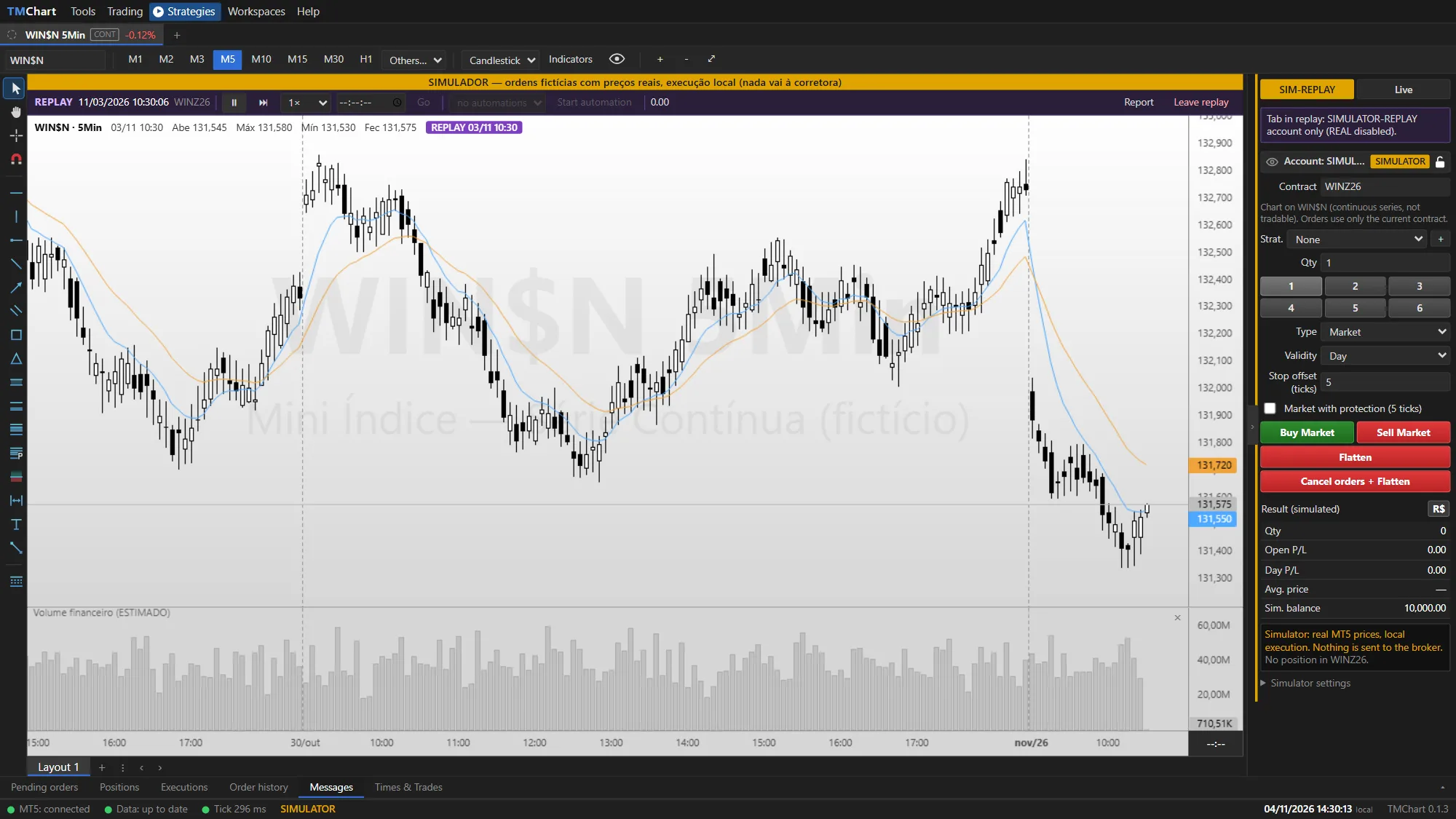
Yes, with market replay: pick the date and time, and the chart tab replays that day's trades as if it were live. You trade through the order ticket, the chart and the Super DOM on the SIMULATOR-REPLAY account and can turn on an automation. Nothing goes to the broker, and each session is saved in the Performance Report. Replay depends on the trades your broker's MetaTrader 5 keeps; without them, it is built from M1, with a notice.
Does TMChart have Times & Trades, footprint and Super DOM?
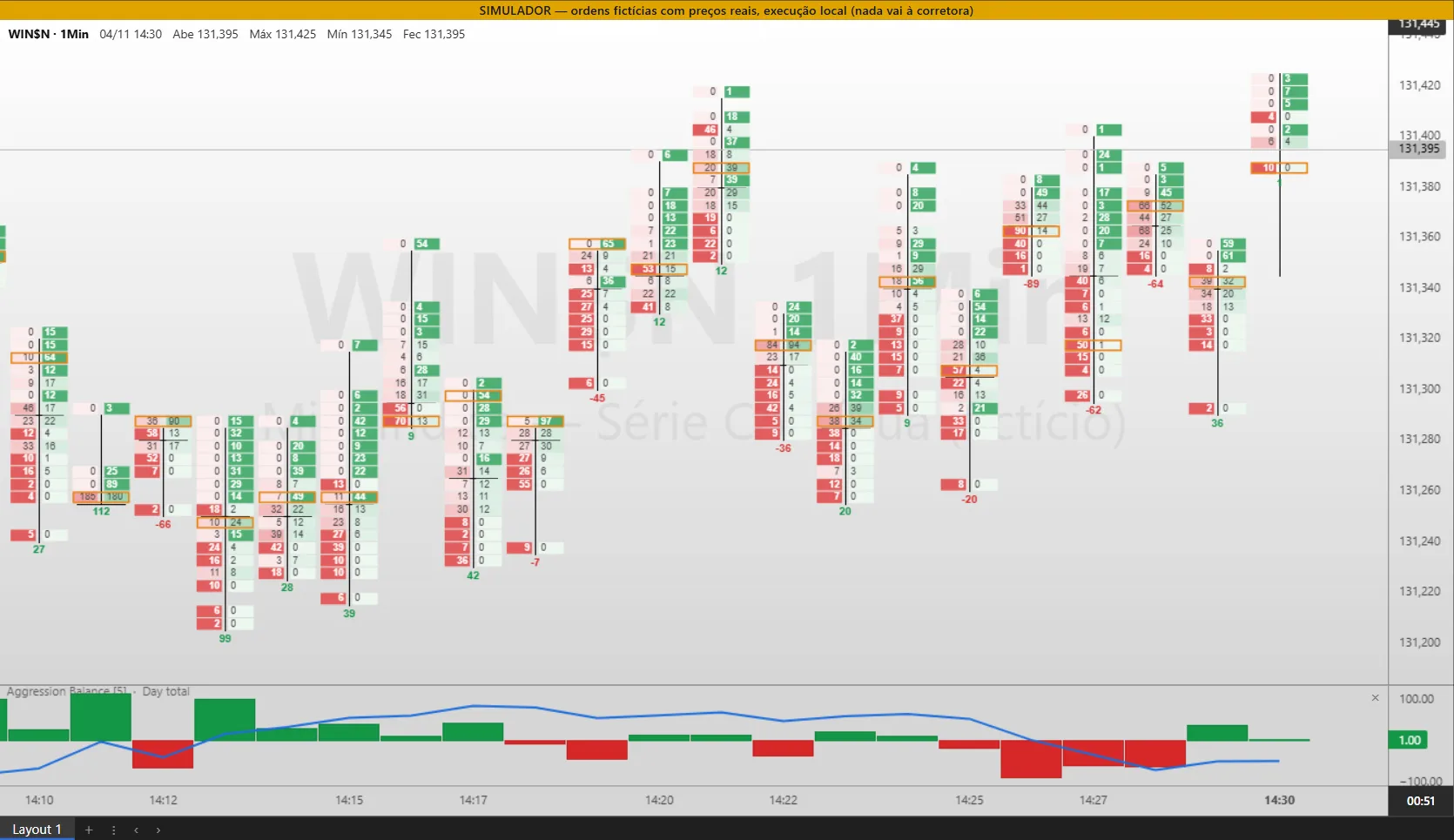
Yes: Times & Trades, Volume at Price, Aggression balance, Footprint, Order Book and Super DOM. They use the trades and the book your broker's MetaTrader 5 provides, with the aggressor side; what MT5 does not report (such as the buying or selling broker) does not show up.
Can I run automations on a live account?
Yes, when your license includes automations on the LIVE account. Turning an automation on in LIVE is your consent: it stays armed and sends orders until you turn it off, press panic, an error occurs or you close the app. If the connection drops, it stays on and resumes on its own when the connection is back, with the stop and target protecting at the broker. Futures and cash stocks are supported, with up to 9 LIVE automations at the same time. Test first in the backtest, on the SIMULATOR and in replay.
Do I need to enable Algo Trading?
Only to send orders on the LIVE account, manually or through automations. For charts, studies, backtesting, optimization, replay and the SIMULATOR, it is not required.
How does the subscription work?
Monthly subscription from $12.95 (2 paid plans), billed on a recurring basis via Stripe. When you confirm the email of a new account, you get a 7-day free trial, no card required. You cancel in the portal and it takes effect at the end of the period already paid. There is also the TMChart Free plan, free with no time limit, which starts when you confirm your email.
On how many computers can I use my license?
It depends on the plan: from 1 to 2 computers per subscription. To switch computers, deactivate the old machine in the app or in the customer portal.
How do I install TMChart?
Download the installer for Windows 10 or 11 (64-bit), choose the language and finish. On first launch, accept the risk notice and the terms; then, in Settings → License, sign in with the email and password of your TMChart account.
How do I get updates?
Automatically. The app downloads the new version in the background and installs it when you close TMChart; it never restarts on its own while you are trading.
Where can I find support?
In the help center (the F1 key in the app opens the article for the screen you are on), through the Help → Contact support menu in the app and through tickets in the customer portal.